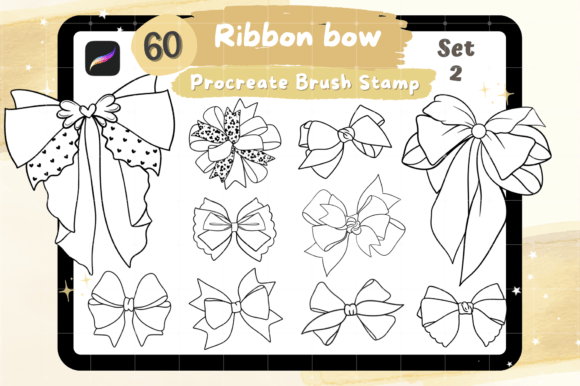
60 Ribbon Bow Procreate Brush Stamp Set
Digital artists and designers often spend hours hand-drawing decorative elements, but the 60 Ribbon Bow Procreate Brush Stamp set offers a streamlined solution for adding elegant flair to your work instantly. This collection is designed specifically for users of the Procreate app on iPad, providing a library of 60 distinct ribbon bow stamps that can be applied with a single tap. Whether you are crafting a wedding invitation, designing a pattern for fabric, or creating digital stationery, these tools eliminate the need to redraw complex shapes repeatedly, allowing you to focus on composition and color rather than repetitive sketching.
What Is Included in the Collection
When you download this resource, you receive a single Zip file containing one .brushset file. Inside, you will find exactly 60 unique stamp brushes, each representing a different style of ribbon bow. These are not traditional drawing brushes that require stroke pressure to create lines; instead, they function as digital rubber stamps. The variety within the set ensures that there is a design suitable for almost any aesthetic, from simple, minimalist loops to elaborate, festive bows with tails and intricate folds.
The versatility of the 60 Ribbon Bow Procreate Brush lies in its ability to adapt to various project scales. Because they are vector-based stamps within the Procreate engine, they maintain their clarity even when resized. You can use a large bow as a central focal point on a greeting card or shrink dozens of them down to create a seamless background pattern for a scrapbook page. The set acts as a comprehensive toolkit for anyone looking to incorporate celebratory or decorative elements into their digital workflow without starting from scratch.
Ideal Applications for Creators and Businesses
This brush set is particularly valuable for entrepreneurs and small business owners who produce digital goods. If you sell printable planners, wedding invitations, or party decorations on platforms like Etsy, having a dedicated library of high-quality bows can significantly speed up your production time. Instead of outsourcing graphic design work or spending days illustrating each element, you can utilize these Digital Stamp assets to finalize designs quickly while maintaining a professional look.
- Invitations and Stationery: Create custom wedding, birthday, or baby shower invites by placing bows at corners or centerpieces. The clean lines of the stamps ensure they print beautifully on paper.
- Graphic Design and Branding: Use the bows to accentuate logos, social media graphics, or packaging labels. A subtle bow stamp can add a touch of luxury to a product label.
- Scrapbooking and Memory Keeping: Digital scrapbookers can layer these stamps over photos to create album pages that feel handmade yet polished.
- Pattern Creation: By repeating the stamps in different sizes and rotations, you can generate unique textile patterns or wallpaper backgrounds for mobile devices.
For educators and hobbyists, these brushes lower the barrier to entry for creating beautiful art. Beginners who may struggle with perspective or shading can still produce impressive illustrations by combining these pre-made elements with other textures and colors. It is an excellent way to learn about composition and layering without getting bogged down by technical drawing challenges.
How to Install and Use the Brushes
Getting started with the 60 Ribbon Bow Procreate Brush Stamp is straightforward, provided you have the correct hardware and software. The process involves importing the file into your device's Procreate application. First, download the Zip file sent to your email. It is crucial to unzip this file before attempting to import it; Procreate cannot read compressed archives directly. Once unzipped, locate the .brushset file.
- Open the Procreate app on your iPad.
- Tap on the Brush Library icon (the circle with three dots) in the top toolbar.
- Tap the three dots in the upper right corner of the Brush Library menu.
- Select "Import" and choose the unzipped .brushset file from your Files app.
Once imported, a new folder containing the 60 stamps will appear in your library. To use them, simply select a stamp from the list and tap anywhere on your canvas. The bow will appear instantly at the size of your current brush scale. One of the most powerful features of these stamps is their flexibility. After placing a bow, you can immediately resize it using two fingers, change its opacity to blend it into the background, or adjust the hue to match your color palette. You can also rotate the stamp to fit the angle of your design perfectly.
Technical Requirements and Compatibility
It is important to understand the specific environment required to use these assets. The Procreate Brush set is built exclusively for the Procreate application on Apple iPads. This means you must have an iPad (including iPad Pro, Air, or mini models) and the Procreate app installed to access these tools. Additionally, while the brushes function as stamps, having an Apple Pencil or a stylus that supports pressure sensitivity enhances the overall experience, especially if you are combining these stamps with hand-drawn elements or adjusting layers.
Please note that these brushes are not compatible with Adobe Photoshop, Clip Studio Paint, or any other non-Apple software. They rely on Procreate's specific brush engine to render the stamp data correctly. Attempting to transfer the .brushset file to a computer or a different tablet operating system will result in errors. If you are working primarily on a desktop computer, this tool is not suitable for your current setup. However, for the millions of iPad users who rely on Procreate for their creative output, this set provides a seamless integration into existing workflows.
Maximizing Your Creative Output
To get the most out of the 60 Ribbon Bow Procreate Brush Stamp, consider experimenting with layer blending modes. While the default setting usually places the bow on top of your artwork, changing the blending mode to "Multiply," "Overlay," or "Soft Light" can make the stamp interact more naturally with underlying textures. For example, if you are designing a vintage-style invitation with a textured paper background, setting the bow to "Multiply" can help it look like it was printed onto the paper rather than pasted on top.
Furthermore, do not limit yourself to standard orientations. Rotating the stamps creates dynamic movement in your designs. Combining different sizes from the set—placing a large bow behind smaller ones—adds depth and dimension to flat illustrations. This technique is particularly effective for creating quick design concepts or mood boards where visual impact is more important than perfect realism. By leveraging these 60 variations, you can build a cohesive visual language for your brand or personal projects, ensuring consistency across all your materials while saving valuable time.