2 Alphabets Sets Procreate Brush Stamp: A Practical Guide for Digital Creators
If you spend your time designing Instagram posts, planning your week in a digital planner, or creating scrapbook layouts on your iPad, you know that typography can make or break a design. Finding the right font often means wrestling with text layers, kerning issues, and limited stylistic options. This is where the 2 Alphabets Sets Procreate Brush Stamp becomes an invaluable tool. Unlike standard text tools, these brushes allow you to stamp letters and numbers directly onto your canvas as rasterized elements, giving you total control over placement, texture, and manipulation.
However, many creators dive into using brush stamps without understanding how they differ from vector text or how to properly install them. Without this foundational knowledge, even the best brush set can lead to frustration, wasted time, and designs that look unprofessional. Let's explore how to get the most out of these tools while avoiding the common pitfalls that trip up both beginners and experienced artists.
Understanding What You Are Getting
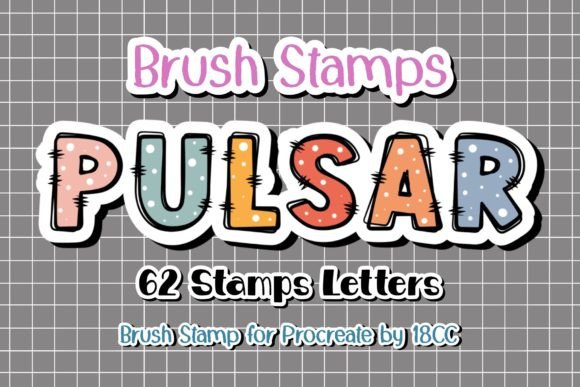
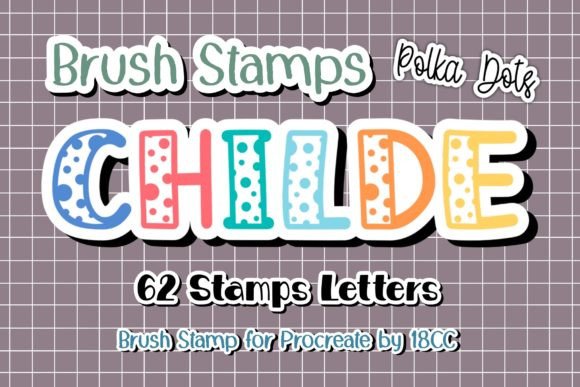
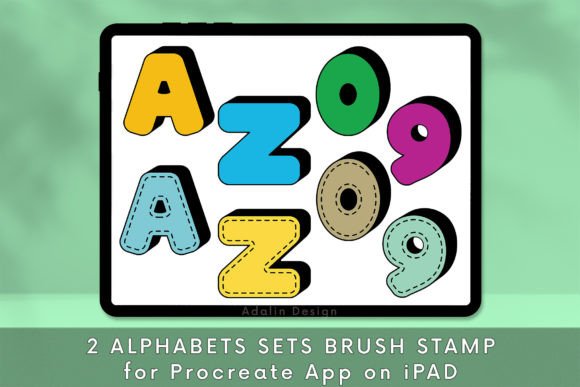
The 2 Alphabets Sets Procreate Brush Stamp is not a single file but a collection designed for versatility. When you download the product, you receive a zip file containing two distinct .brushset files. One set typically covers the 26 capital letters alongside numbers 0-9, providing the essential building blocks for headlines, dates, and titles. The second set offers an alternative style, allowing you to mix and match aesthetics within a single project.
These are specifically engineered for the Procreate app on iPad. They function as "stamps," meaning every tap of your stylus places a pre-designed letter or number exactly as it appears in the brush library. This is distinct from drawing freehand; the consistency of the shape is preserved, which is crucial for maintaining a cohesive brand identity or a neat layout in digital scrapbooking.
Common Mistakes That Ruin Your Workflow
One of the most frequent errors I see creators make is treating these brush stamps exactly like standard text boxes. If you try to type a word by tapping individual letter stamps, you will likely struggle with spacing. Because each letter is placed independently, the automatic kerning and tracking features of a text layer do not apply. If you simply tap 'A', then 'B', then 'C' without adjusting the size or position between taps, your words may look uneven or disjointed.
The Fix: Use the undo button liberally. Place your letters one by one, zooming in frequently to adjust the spacing manually. Alternatively, use the selection tool to group multiple stamped letters once you have arranged them perfectly. This allows you to move the entire word as a single unit later without losing your alignment work.
Ignoring Resolution and Scaling Issues
Another oversight involves resizing. While the instructions state you can resize these stamp brushes, doing so incorrectly can degrade image quality. If you start with a very small stamp and scale it up massively to fill a poster-sized canvas, the edges may become pixelated or blurry. Conversely, starting too large and scaling down can sometimes result in a loss of fine detail depending on the brush settings.
To avoid this, always test your brush at the intended final size before committing to a full design. If you need the text to be massive, ensure your canvas resolution is high enough (usually 300 DPI for print or 72+ PPI for screen) to support the scaled-up stamp without artifacts.
Installation Errors and How to Avoid Them
Even if the design is perfect, the utility of the 2 Alphabets Sets Procreate Brush Stamp is zero if you cannot get it into your app. The installation process seems simple—download, unzip, import—but there are specific steps where users often stumble.
A common mistake is trying to open the .zip file directly inside Procreate. Procreate does not natively read zip archives. You must first unzip the file using the Files app on your iPad. Once unzipped, you should see the .brushset files. If you attempt to tap a .zip file in Procreate, nothing will happen, leading many to believe the file is broken.
Correct Installation Steps:
- Download the zip file to your iPad.
- Open the Files app and locate the download.
- Tap the zip file to extract its contents automatically.
- Open Procreate and navigate to the Brushes panel.
- Tap the three dots icon next to your brush sets and select "Import."
- Select the newly extracted .brushset files.
Once imported, the sets will appear in your library. Remember, these brushes are exclusive to Procreate. They will not work in other apps like Photoshop Express or Canva unless you export them as images first, which defeats the purpose of having editable brush tools.
Optimizing Your Design Process
Once installed, the real power of these brushes lies in customization. Many users stick to the default black color, missing out on the potential to blend the text seamlessly into their artwork. Since these are brush stamps, they behave like any other paint stroke in Procreate.
You can change the opacity to create subtle watermarks or faded backgrounds. You can alter the blending modes to make the text interact with underlying textures, such as making white text pop against a dark background or creating a "multiply" effect for paper-like transparency. Furthermore, because these are stamps, you can apply filters to them after placing them. For example, you can add a blur, a noise filter, or a warp effect to individual letters to give your Instagram posts a hand-painted or distressed look that standard fonts cannot achieve.
Choosing the Right Set for Your Project
When deciding whether to purchase or use the 2 Alphabets Sets Procreate Brush Stamp, consider the nature of your project. If you are creating a formal business document or a legal contract, standard vector fonts are superior because they remain crisp at any size and are easily editable. However, for creative endeavors like digital planning, scrapbooking, social media graphics, and artistic branding, these brushes offer a unique aesthetic.
They are particularly useful when you need to integrate text into a painting rather than just sitting on top of it. For instance, if you are creating a floral scrapbook page, stamping the date with a textured brush makes the text feel like part of the collage, whereas a standard text box might look pasted on.
Evaluating Quality Before You Commit
Before you fully rely on these brushes for client work or public content, take a moment to evaluate the specific styles included in the two sets. Do the letterforms align well? Is the spacing consistent across the alphabet? Sometimes, free or low-quality brush sets have inconsistent baseline heights, forcing you to constantly adjust the vertical position of each letter.
With the 2 Alphabets Sets Procreate Brush Stamp, you get a curated experience where the 26 capital letters and numbers 0-9 are designed to work together. Check the preview images to ensure the style matches your brand voice. If you are a marketer or entrepreneur, consistency is key. Using a playful, handwritten stamp for a serious financial report would be a mismatch. Ensure the visual tone of the brush complements the message you are trying to convey.
Final Thoughts on Efficiency and Creativity
Integrating the 2 Alphabets Sets Procreate Brush Stamp into your workflow can significantly speed up your design process while adding a personal touch that generic fonts lack. By understanding the limitations of stamp-based text and mastering the installation and resizing techniques, you transform a simple digital asset into a powerful design engine.
Whether you are a beginner learning the ropes of digital art or a professional looking to streamline your Instagram content creation, these tools offer flexibility. Just remember to plan your layout carefully, manage your spacing manually, and always test your brushes at the correct scale. With these precautions, you will avoid the common frustrations and produce high-quality, professional-grade graphics that stand out in a crowded digital space.